
Track 6 · Account, team & integrations
Account & team
My Profile, Logins & Permissions, and the top-level Company record.
Step 1 of 6
Three people panels
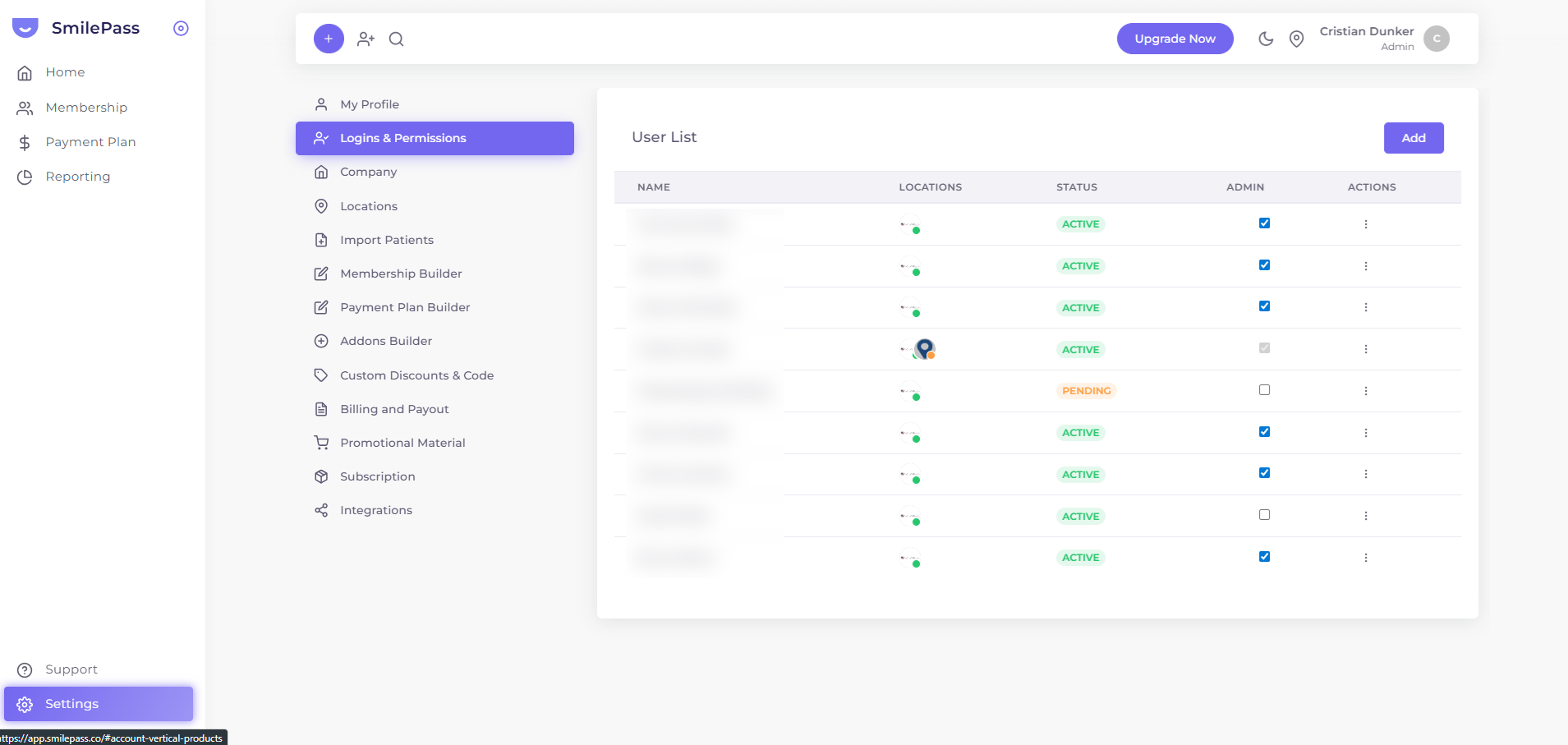
In Settings, three panels cover the people side: My Profile (your own login), Logins & Permissions (your staff), and Company (the legal entity). This guide focuses on Logins & Permissions.
Click the highlighted area or Next to continue · use ← → keys
Three Settings panels cover the people who log in and the practice entity itself.
My Profile — your personal account
Settings → My Profile. Your individual account record:
- First Name · Last Name
- E-mail — the address you sign in with
- Phone
- New Password / Retype New Password — leave blank to keep your current password
Press Save changes to commit, Cancel to discard.
You can also reach this page via the user avatar dropdown → Profile in the top bar.
Logins & Permissions — your staff
Settings → Logins & Permissions. The User List table:
| Column | Used for |
|---|---|
| Name | Who they are |
| Locations | Which clinics they can act under (icons) |
| Status | Active / Pending / Disabled |
| Admin | Toggle — admin access vs limited access |
| Actions | Edit / Disable / Delete |
Adding a user one-at-a-time
Press Add (top right). A drawer opens asking for:
- First Name · Last Name
- Email — the invitation is sent here
- User Role — dropdown
- Locations — multi-select for which clinics this user can act under
Press Create. The new user receives a welcome email and shows in the list immediately. They'll show as Pending until they accept the invite.
Different from the bulk-invite step in the onboarding wizard: this is the post-launch way to add people one at a time. Use this for any new hire.
Company — the top-level legal entity
Settings → Company. This is the business record, separate from each clinic's Location.
Two blocks:
Company Details
- Company Name — your legal trading entity
- ABN — Australian Business Number
Contact Person
The primary admin SmilePass contacts about subscription, billing or escalations.
- First Name · Last Name
- Phone Number
This person typically isn't the same as every staff user — they're the one who owns the SmilePass relationship.
How the three relate
Think of it as three concentric circles:
- Company = the legal entity (one)
- Locations = the clinics it operates (one or many)
- Logins & Permissions = the people who log in (many, each scoped to one or more locations)
Set Company and Locations once at setup. Maintain Logins & Permissions as your team grows.
Next step
Your SmilePass subscription →
The four pricing tiers and what each one includes.