
Track 1 · Getting started
The onboarding wizard
What SmilePass asks during the four-step first-time setup.
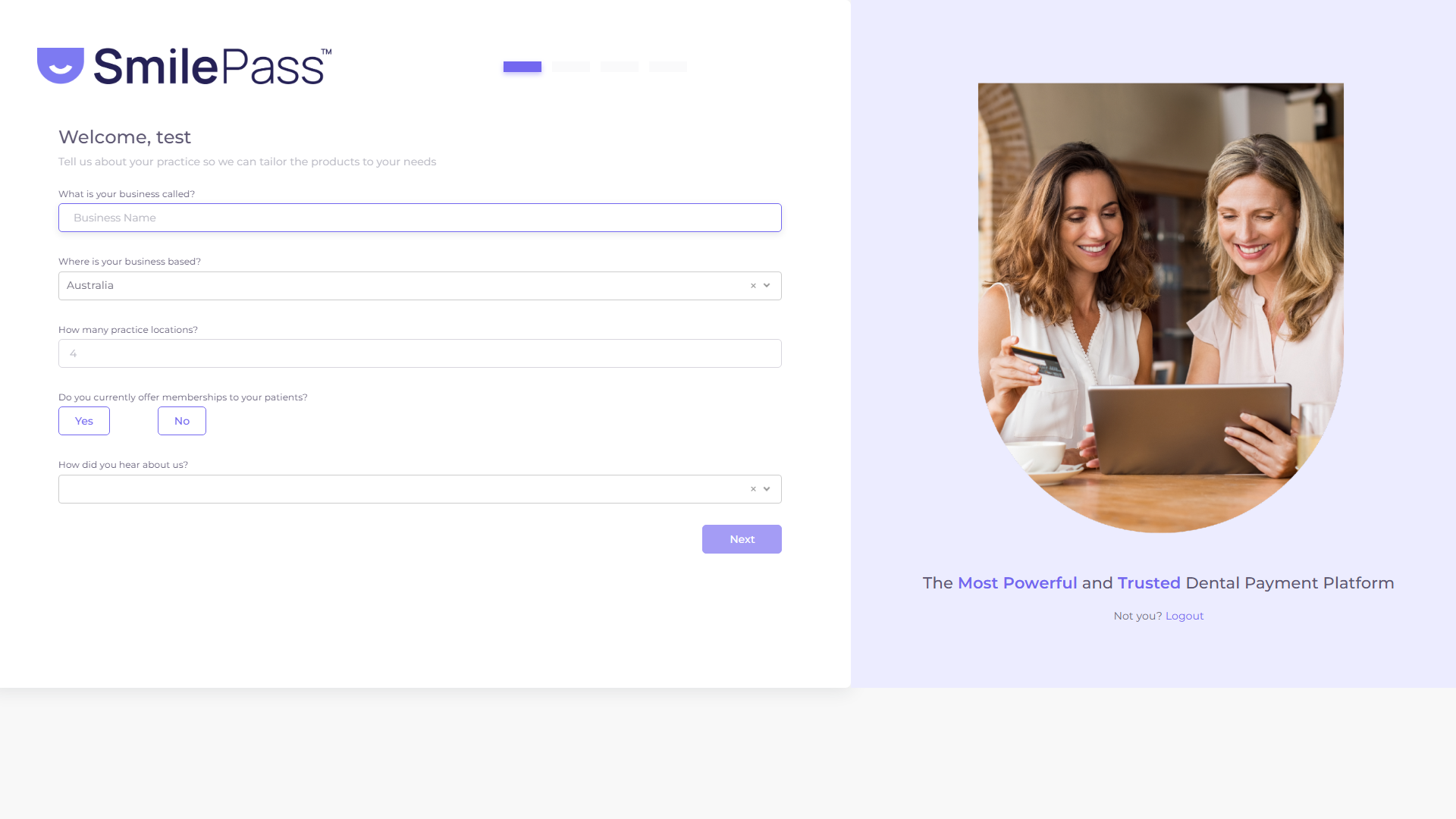
Step 1 of 4
Step 1 — Tell us about your practice
Your business name, country (Australia by default), how many locations you run, whether you already offer memberships, and how you heard about us. Nothing here is permanent — it just seeds smart defaults. Press Next.
Click the highlighted area or Next to continue · use ← → keys
The very first time you sign in to SmilePass — right after you create your free account — you're handed to a short four-step wizard that greets you with "Welcome, [your name]." Nothing you enter here is locked in; every value is editable later from Settings. Think of it as a smart default-builder, not a contract. Walk through it with the interactive guide above, then use the notes below for the detail.
Step 1 — Tell us about your practice
Five fields:
- What is your business called? — your practice name. This becomes the default Company Name and seeds your first Location.
- Where is your business based? — country dropdown, defaulted to Australia.
- How many practice locations? — the number of clinics you operate.
- Do you currently offer memberships to your patients? — Yes / No buttons.
- How did you hear about us? — dropdown.
Press Next once everything is filled.
Step 2 — Add your team
A table of four blank rows, each asking for First Name · Last Name · Work Email · Admin toggle.
Anyone you add here is immediately sent a welcome email, so only enter real addresses — don't fill it with placeholder data just to move on. If you'd rather invite people later, use Skip at the bottom (and Previous to step back). You can always add users one at a time from Settings → Logins & Permissions once you're inside.
Step 3 — Pick your primary goals
A multi-select titled "What are the primary goals for joining SmilePass?" with seven options:
- Increase Treatment Acceptance Rate
- Attract New Patients
- Differentiate From Competitors
- Expand Financial Options
- Increase Revenue
- Improve Patient Retention and Re-engagement
- Minimise Revenue Fluctuations / Create Predictable Revenue
Pick whichever apply — SmilePass uses your choices to tune the dashboard hints later. There's no penalty for selecting many.
Step 4 — Choose your payment solutions
A second multi-select — "What payment solutions will you add to your practice?" — with six options:
- Membership Plans
- In-House Payment Plans / Instalments
- Third Party Payment Plans / Dental Loans
- Online Instant Payment
- Dental Savings Account
- Gift Cards
The dashboard surfaces only the modules you turn on here (you'll see these as the solution tabs across the top of Home). If you're not sure, leave them all on — you can toggle off what you don't use later.
Press Finish to enter the platform.
What happens next
You land on the dashboard with a five-step setup checklist waiting for you — Set Up Practice Location, Invite Your Team, Create Membership Plans, Order Marketing Essentials Kit, Send Patient Invitations. That checklist picks up right where the wizard left off. First stop: setting up your practice locations.
Next step
Your dashboard →
The home screen, the five-step setup checklist, and how it tracks itself.