
Track 1 · Getting started
Your dashboard
The home screen, the five-step setup checklist, and how it tracks itself.
Step 1 of 7
The 5-step setup checklist
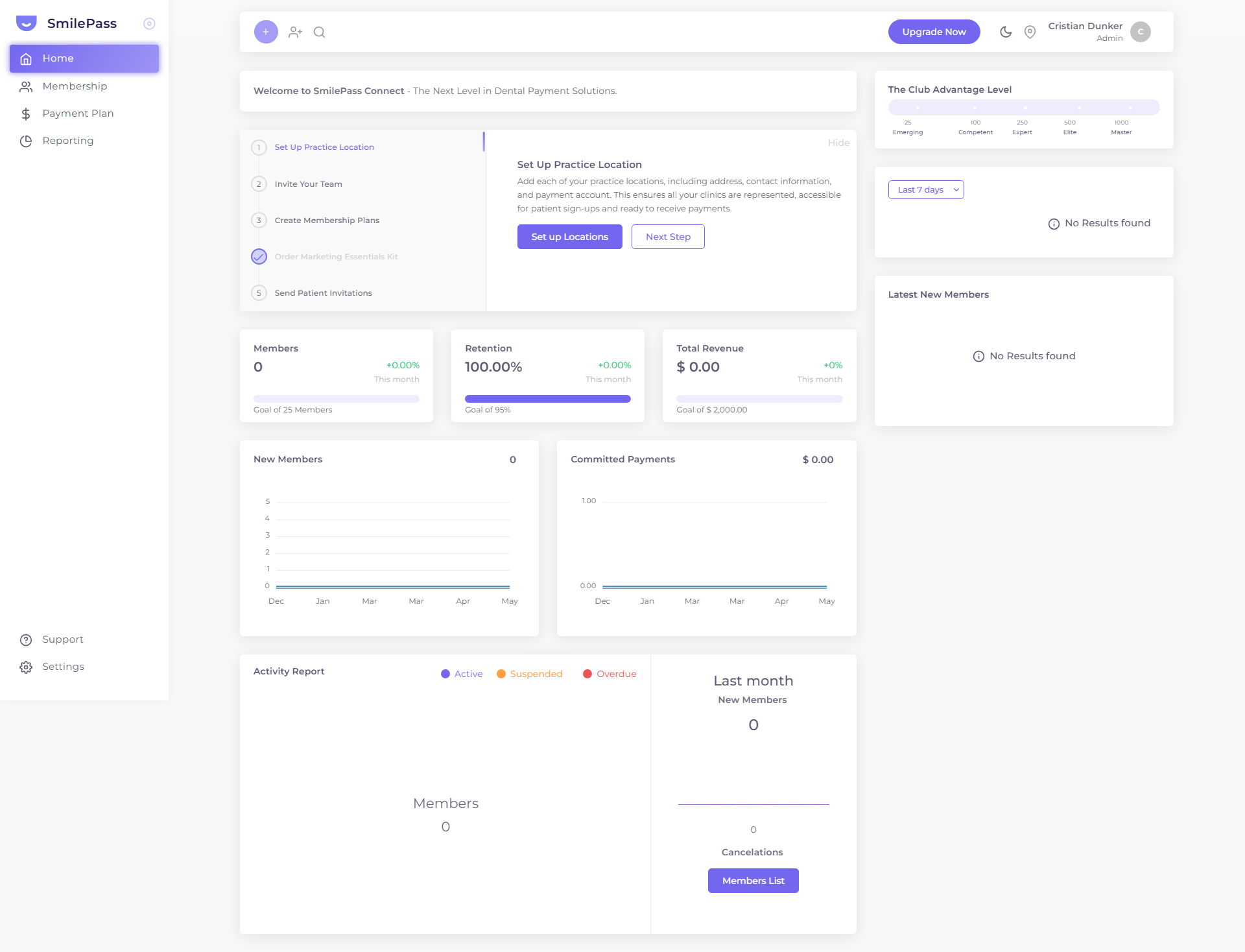
When you're new, this is front and centre: Set Up Practice Location → Invite Your Team → Create Membership Plans → Order Marketing Essentials Kit → Send Patient Invitations. It self-ticks as you complete each action elsewhere, and gates later steps until earlier ones are done. Press Hide once you've outgrown it.
Click the highlighted area or Next to continue · use ← → keys
The dashboard (Home in the sidebar) is the first screen you see every time you sign in. It packs several things into one view: a guided setup checklist, your gamified milestone meter, live KPIs, trend charts and an activity report. Use the interactive guide above to tour each area, with the detail below.
The five-step setup checklist
Front and centre when you're new. Steps:
- Set Up Practice Location — jumps to Settings → Locations (Edit your auto-created clinic).
- Invite Your Team — jumps to Settings → Logins & Permissions to add staff.
- Create Membership Plans — opens Settings → Membership Builder.
- Order Marketing Essentials Kit — opens the in-app shop (Settings → Promotional Material).
- Send Patient Invitations — bulk-invite patients to join your plans.
Two things to know about how the checklist behaves:
- It self-ticks. When you complete the underlying action elsewhere in the app, the checklist item flips to "done" on its own — for example, visiting the materials shop ticks step 4. You don't have to come back and mark things complete.
- It gates. Some steps require earlier steps. "Send Patient Invitations" stays disabled with a button that reads Requires Step 3 until you've created at least one membership plan. Build first, invite second.
Press Hide in the top-right of the checklist when you've outgrown it.
The Club Advantage Level
A horizontal milestone bar across five tiers based on your active member count:
- Emerging — 25 members
- Competent — 100
- Expert — 250
- Elite — 500
- Master — 1,000
It's gamification, not gating. Useful as a benchmark for where you sit relative to other practices.
KPI cards & charts
Three headline metrics with this-month deltas and goal targets:
- Members — total active members (goal 25)
- Retention — % of members still active (goal 95%)
- Total Revenue — collected revenue (goal $2,000)
Below: two line charts (New Members and Committed Payments) plus the Latest New Members feed.
The date-range dropdown at top-right of the right column (Last 7 days by default) filters the right-side widgets — useful for comparing this week to last.
Activity Report
Near the bottom, the Activity Report breaks your members down by status — Active · Suspended · Overdue — and shows last month's new members vs cancellations. It's a fast health check: if the overdue slice is creeping up, that's your cue to chase payments (see overdue & failed payments).
Sidebar at a glance
The left sidebar — Home · Membership · Payment Plan · Reporting on top, Support · Settings pinned to the bottom — stays visible on every screen. The top bar carries the quick-action shortcuts that work from anywhere.
Next step
Quick actions in the top bar →
The shortcuts every screen carries — patient creation, payment, theme, location, profile.