
Track 7 · Troubleshooting & FAQ
Getting help
How to open a support ticket and what happens after you do.
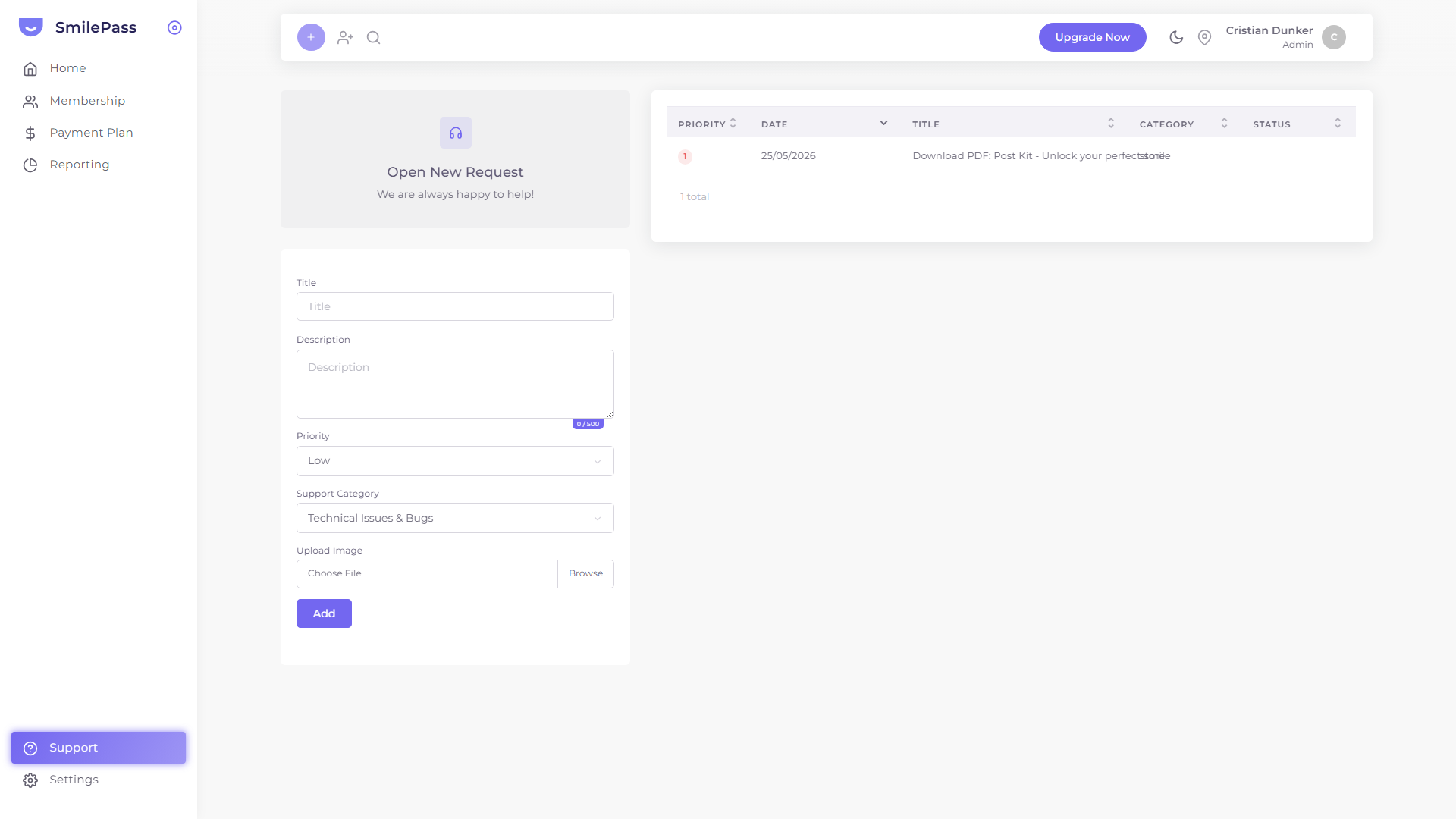 Sidebar → Support. File a ticket on the left, watch its status on the right.
SmilePass has two paths for getting help.
1. Open a ticket yourself
Click Support at the bottom of the left sidebar (or pick Support from the user avatar dropdown in the top bar). The page is split in two.
Open a new request (left)
Fill in:
- Title — one line summarising the issue
- Description — what happened, in up to 500 characters
- Priority — dropdown; default Low
- Support Category — dropdown; default Technical Issues & Bugs
- Upload Image — attach a screenshot for context (recommended for bugs)
Press Add to file the ticket.
Your tickets (right)
A sortable table of every ticket you've opened. Columns: Priority · Date · Title · Category · Status. Replies from the SmilePass team appear inside the ticket detail view — click into a row to see the conversation.
Statuses cycle: Open → In Progress → Waiting on user → Resolved → Closed.
2. Reach a human
For anything urgent — billing-impacting issues, security concerns, or escalations — use the Contact us form on the marketing site. That routes directly to the SmilePass team rather than the general support queue.
For Enterprise customers, dedicated account managers reach out and handle escalations directly. Pro tier gets Priority Support — your tickets jump the queue.
What makes for a good ticket
Help us help you. Include:
- What you were trying to do ("I was creating a payment plan with a 24-month term")
- What happened ("the ADD + button did nothing")
- Browser + device ("Chrome on Mac")
- Screenshot (use the Upload Image field)
A ticket with all four resolves in roughly 1/3 the time of a vague one.
What's next
That wraps up the SmilePass wiki. From here you can: