
Track 7 · Troubleshooting & FAQ
Member management FAQ
Pausing, cancelling, transferring and member statuses.
Quick answers to the member-lifecycle questions reception asks most. The actions live on the member list (row Actions ⋮) and the member detail view.
How do I suspend or cancel a member?
From the member list, open the row Actions (⋮) → Suspend or Cancel; both are also buttons on the member detail card. Full detail (and what each does) is in suspending & cancelling a member.
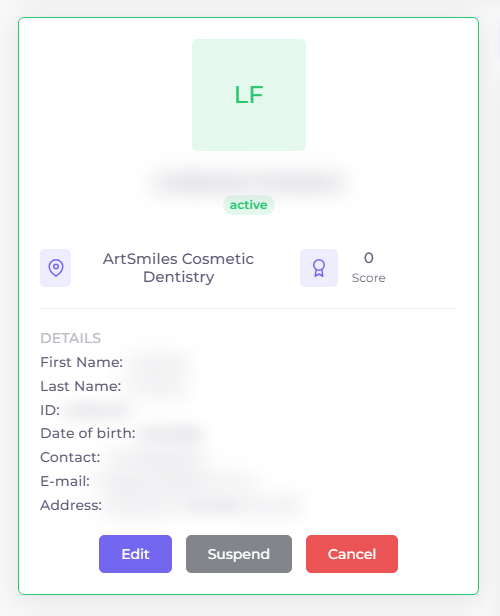 The Edit · Suspend · Cancel buttons sit at the bottom of the member's profile card.
Can a member pause their membership?
There's no distinct "pause/resume" action — the lifecycle controls are Suspend and Cancel. Suspend is the closest thing to a pause (it stops the member being active without permanently cancelling them).
To confirm: whether a suspended member can be reactivated later from the same menu, and the billing behaviour while suspended.
Can I move a member to a different plan?
Yes — open the member's detail view and use Change Plan on their plan card.
To confirm: exact proration / billing behaviour when switching mid-cycle.
Can I add family members later?
Yes — Enroll Dependent on the member's plan card adds dependents after signup (they're also addable during the signup wizard). Each dependent triggers the Dependent Program discount.
What do the member statuses mean?
- active — paid and current.
- overdue — a due charge is unpaid; SmilePass is retrying (see overdue & failed payments).
- suspended — stopped via the Suspend action.
- cancelled — ended via the Cancel action.
The dashboard's Activity Report widget summarises your Active / Suspended / Overdue mix.
Next step
Suspending & cancelling a member →
The member lifecycle actions — what Suspend and Cancel do, and when to use each.