
Track 3 · Building your plans
Loyalty, discounts & promo codes
Dependent discounts, referral rewards, and promo codes.
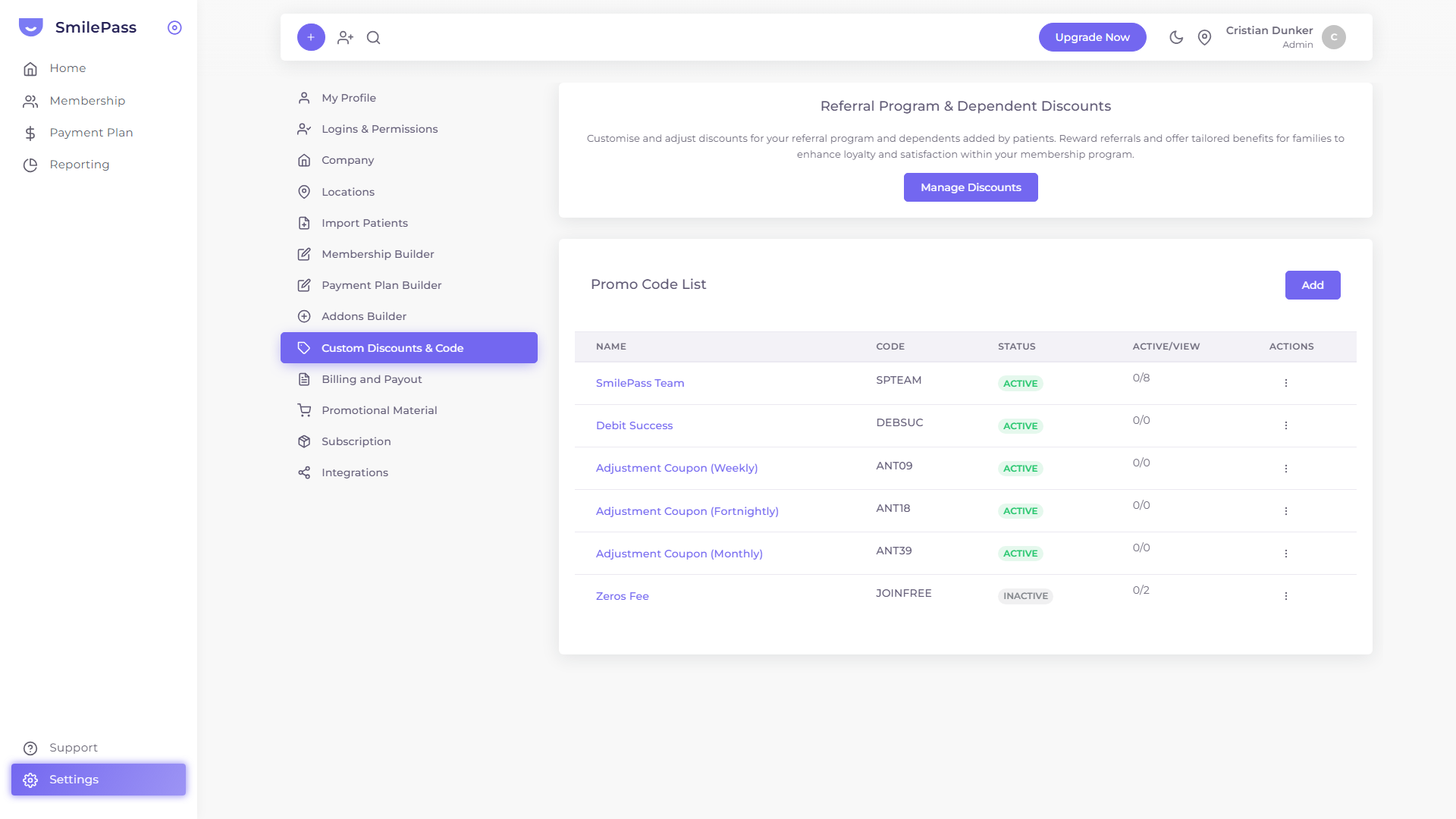
Step 1 of 3
Open Manage Discounts
In Settings → Custom Discounts & Code, under Referral Program & Dependent Discounts, click Manage Discounts.
Click the highlighted area or Next to continue · use ← → keys
Loyalty in SmilePass takes three forms, all configured in Settings → Custom Discounts & Code. Together they let you reward families, drive referrals, and run targeted campaigns without bending the price of your underlying plans.
Dependent Program — family discount
Press Manage Discounts, toggle Dependent Program on, and set a percentage (default 10%).
The discount accumulates for the account holder with every dependent added.
Example: at 10%, an account holder with 3 dependents gets a 30% membership discount, and each dependent also gets 10%. A family of 5 (account holder + 4 dependents) on a $20/month plan pays $20 × 0.6 + 4 × $20 × 0.9 = $84/month instead of $100 if there were no dependent discount.
Use this to make family-of-four sign-ups feel like a deal — they likely will pay for itself many times over in retained patient relationships.
Referral Program — word-of-mouth rewards
In the same Manage Discounts modal, toggle Referral Program on and set a percentage.
How it works:
- Existing members earn the discount per active referral for 12 months
- The referred friend keeps the discount for as long as they remain a member
Example: at 10%, a member with 2 active referrals pays 20% less on their membership for 12 months, while each referred friend gets 10% off for as long as they stay subscribed.
The 12-month cap on the existing member keeps the discount sustainable for your practice while still rewarding sustained advocacy.
Promo codes — campaign vouchers
The Promo Code List below the Referral card lets you create one-off coupon codes. Each row shows the Name (internal label, e.g. "Spring 2026 launch"), the Code patients type, its Status (Active/Inactive), an Active/View toggle, and Actions.
Press Add (top right of the card) to open the New Coupon drawer:
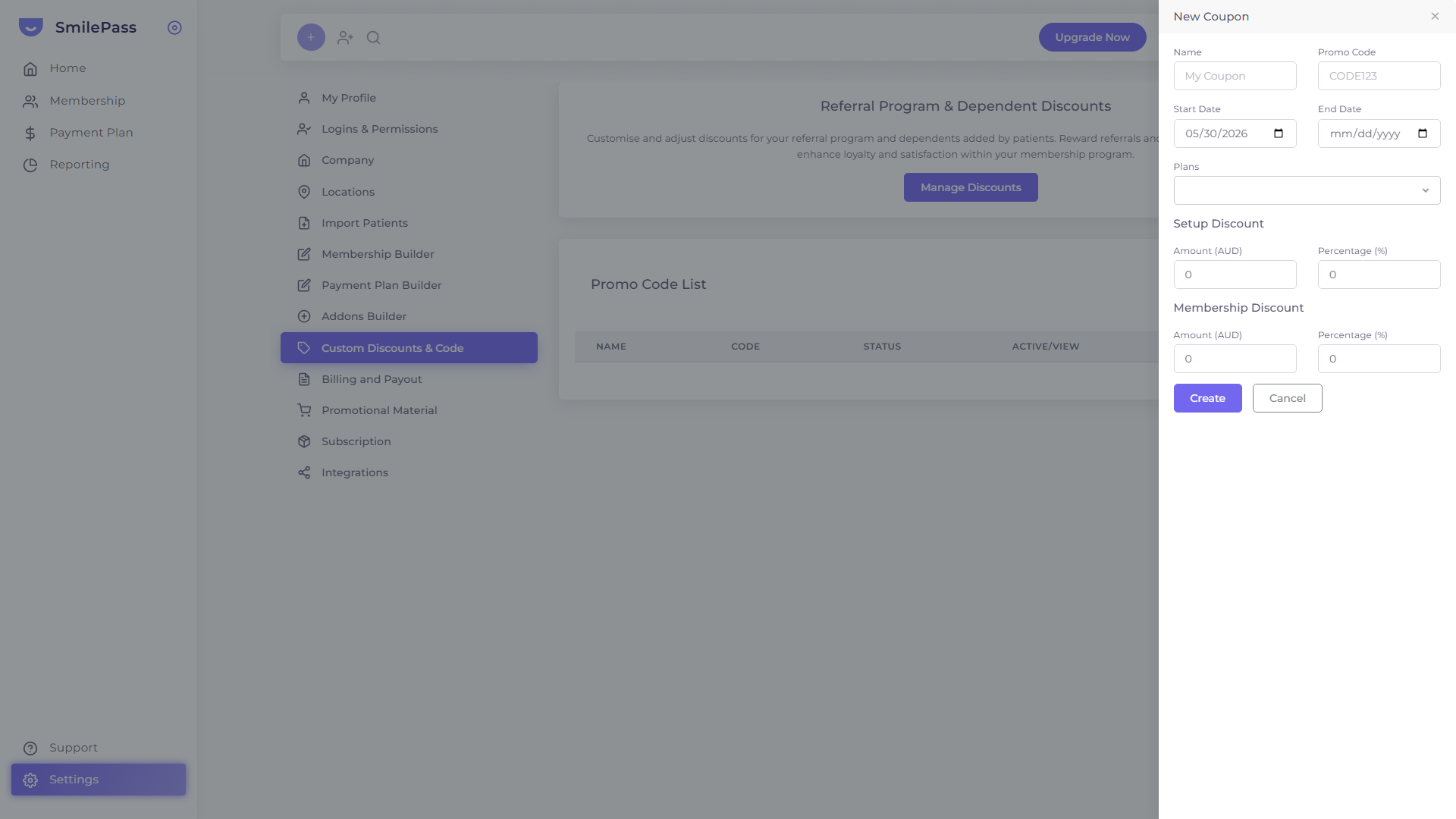 Settings → Custom Discounts & Code → Promo Code List → Add. One coupon can discount the join fee and the recurring fee independently.
- Name and Promo Code (e.g. SPRING25)
- Start Date / End Date — the window the code is valid
- Plans — which membership plans the code applies to
- Setup Discount — Amount (AUD) or Percentage off the one-time join fee
- Membership Discount — Amount (AUD) or Percentage off the recurring fee
That split is the part worth remembering: a single coupon can waive the join fee, discount the monthly fee, or both. Press Create to make it live.
Patients use the code by typing it into the COUPON field on the Add New Member wizard (Step 1) and pressing Apply — the pricing card updates live. The same field appears on the patient's own signup page.
When to use which
- Dependent Program — leave it on. It's a no-brainer for family bookings.
- Referral Program — turn it on once you have ~25 happy members to refer-from.
- Promo codes — for one-off campaigns: new-clinic launch, a partner-network special, seasonal pushes.
You can run all three at once — the discounts stack at sign-up.
Next step
Included services & procedures →
The fields behind every benefit you add to a plan.