
Track 4 · Daily operations
The patient signup flow
How a patient joins a plan, end to end — they never log in.
Step 1 of 5
Step 1 — Choose a plan
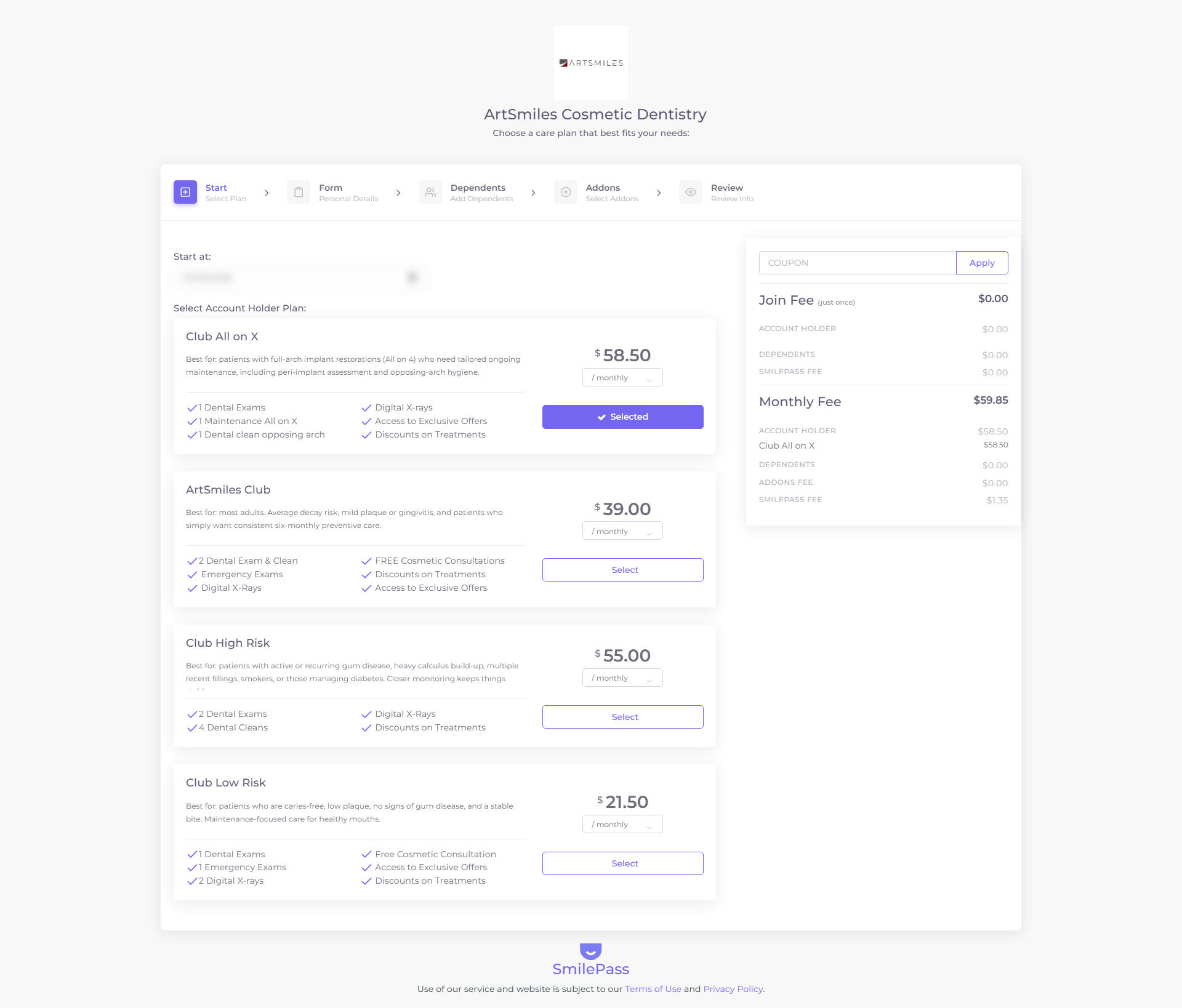
Tapping the link in their SMS or email opens this branded page — no account, no password. It's your clinic's logo with "Choose a care plan that best fits your needs." The plan you pre-selected is highlighted; the patient presses Select on the one they want. The pricing card on the right shows what they'll pay, live.
Click the highlighted area or Next to continue · use ← → keys
Patients never log in to SmilePass — they join through a single secure link. The interactive guide above walks through exactly what they see; here's the full journey end to end.
1. You create the invitation
From the clinic app you run the Add New Member wizard (or import the patient). SmilePass sends the patient both an SMS and an email, each carrying the same join link.
- The SMS (sender "SmilePass") reads like: "You've been invited to our exclusive [Clinic] membership for special care & savings! Complete your sign up here: [link]"
- The email (from
contact@smilepass.co, subject "Confirm Your SmilePass Membership Details") is branded, greets the patient by name, and has a Confirm Membership button. It spells out the three things they'll do: review and confirm their details, choose a payment method, and finalise the membership.
2. The patient opens the link
The link opens a public signup page — no account, no password. It's the same five-step wizard your team uses (Start · Form · Dependents · Add-ons · Review), branded with your clinic's logo and "Choose a care plan that best fits your needs." The invitation pre-loads the plan you selected, and the right-hand pricing card shows the Join Fee and Monthly Fee breakdown (including the SmilePass fee), with a COUPON field if you've issued a promo code.
3. The patient confirms and pays
The patient reviews the details, selects their payment method and confirms. SmilePass then:
- creates their member record and an active contract,
- records their acceptance of the terms,
- charges the first payment, and
- saves the payment method (typically a BECS direct debit under the Direct Debit Request agreement) for the recurring cycle.
4. Confirmation
A welcome email goes to the patient and your clinic is notified that a new member has joined. From there the contract bills automatically — see the recurring billing cycle. The whole sequence is also logged on the member's Activities timeline (Membership Created → Activated → Payment Processing).
Next step
Importing existing patients (CSV bulk) →
Load your existing patient list into SmilePass in one go instead of typing them one-by-one.