
Track 4 · Daily operations
Taking a payment plan
Put a patient on instalments for treatment they'll pay off over time.
Step 1 of 9
Open the Payment Plan tab
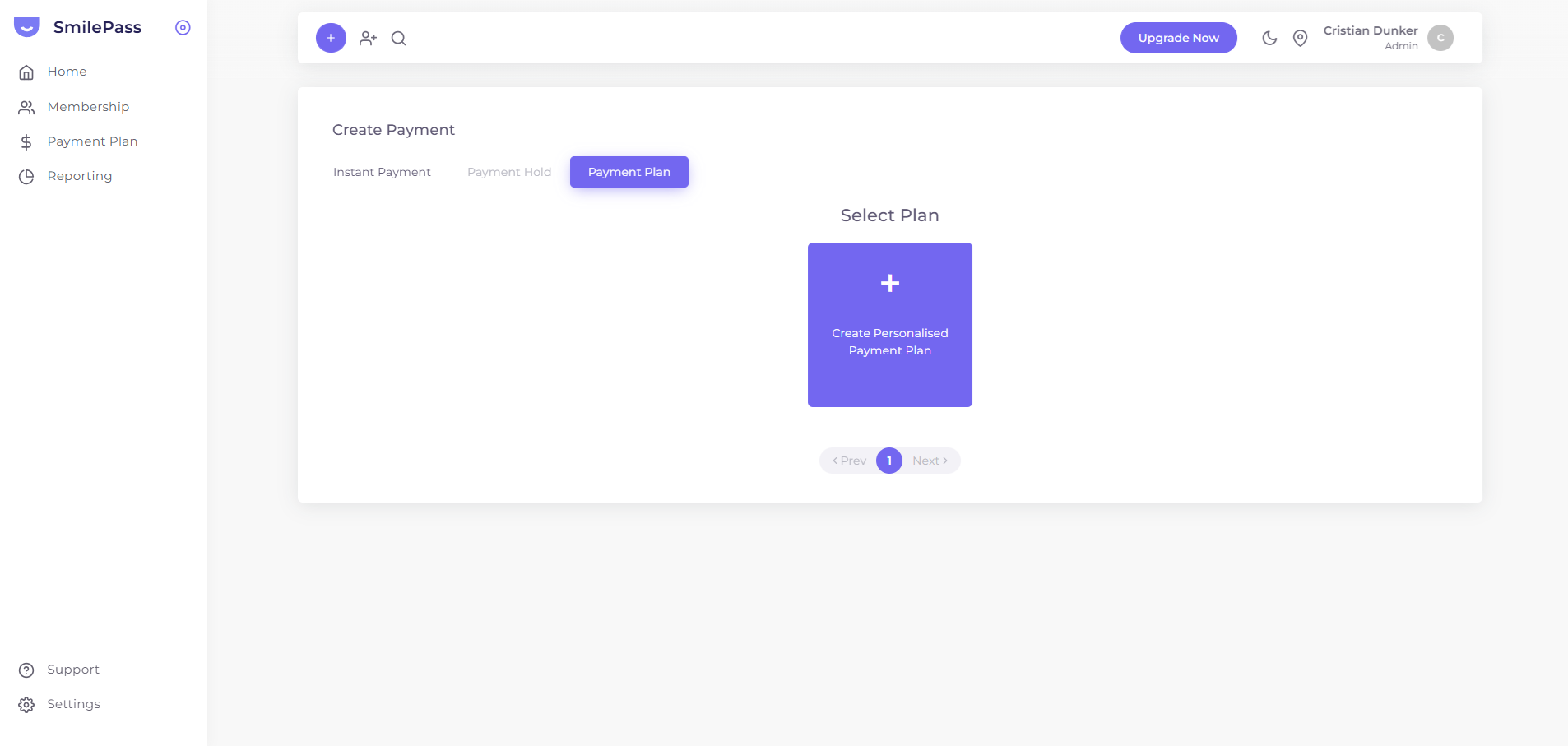
On the Create Payment screen (Payment Plan in the sidebar → Create Payment), click the Payment Plan tab.
Click the highlighted area or Next to continue · use ← → keys
A payment plan spreads a treatment cost over weeks or months — handy for orthodontics, implants and major restorative work. It's one of the tabs on the same Create Payment screen you use for a single charge (see taking an instant payment for that flow).
Important — the clinic owns the payment plan. Your clinic is solely responsible for every plan it sets up. If a patient misses a payment, chasing it is the clinic's responsibility — SmilePass does not act as a debt collector at this time. See payment plans for the full note.
Where to start
Click Payment Plan in the left sidebar to open the payments list, press Create Payment, then switch to the Payment Plan tab.
Apply a template or build a one-off
You have two ways to set the instalments:
- Apply a pre-built template — pick one of your payment plan templates. The pagination at the bottom of the list (
< Prev [1] Next >) cycles through them if you have many. - Create Personalised Payment Plan — design a one-off plan just for this patient, using the same fields as the Payment Plan Builder.
If the patient already has an active membership, plans flagged Only for Members appear here too.
Select the patient (or add a new one), confirm the plan, and Send — the patient gets a secure link and sets up the instalments on their own device.
Tracking the instalments
Once sent, the plan shows in the Payment Plan list with Payment Type = instalment. Two columns let you reconcile each patient at a glance:
- Progression — the fraction paid, as a count + percentage (e.g.
3/12 (25.00%)) - Balance — the dollars still outstanding
The Status column reads active while instalments are running, then completed once the plan is fully paid (or cancelled / expired if it stops early). For the full reconciliation workflow, see tracking results.
Next step
Tracking results — KPIs, reports and reconciliation →
Dashboard KPIs, referral tracking, and per-list status columns.