
Track 4 · Daily operations
Importing existing patients (CSV bulk)
Load your existing patient list into SmilePass in one go instead of typing them one-by-one.
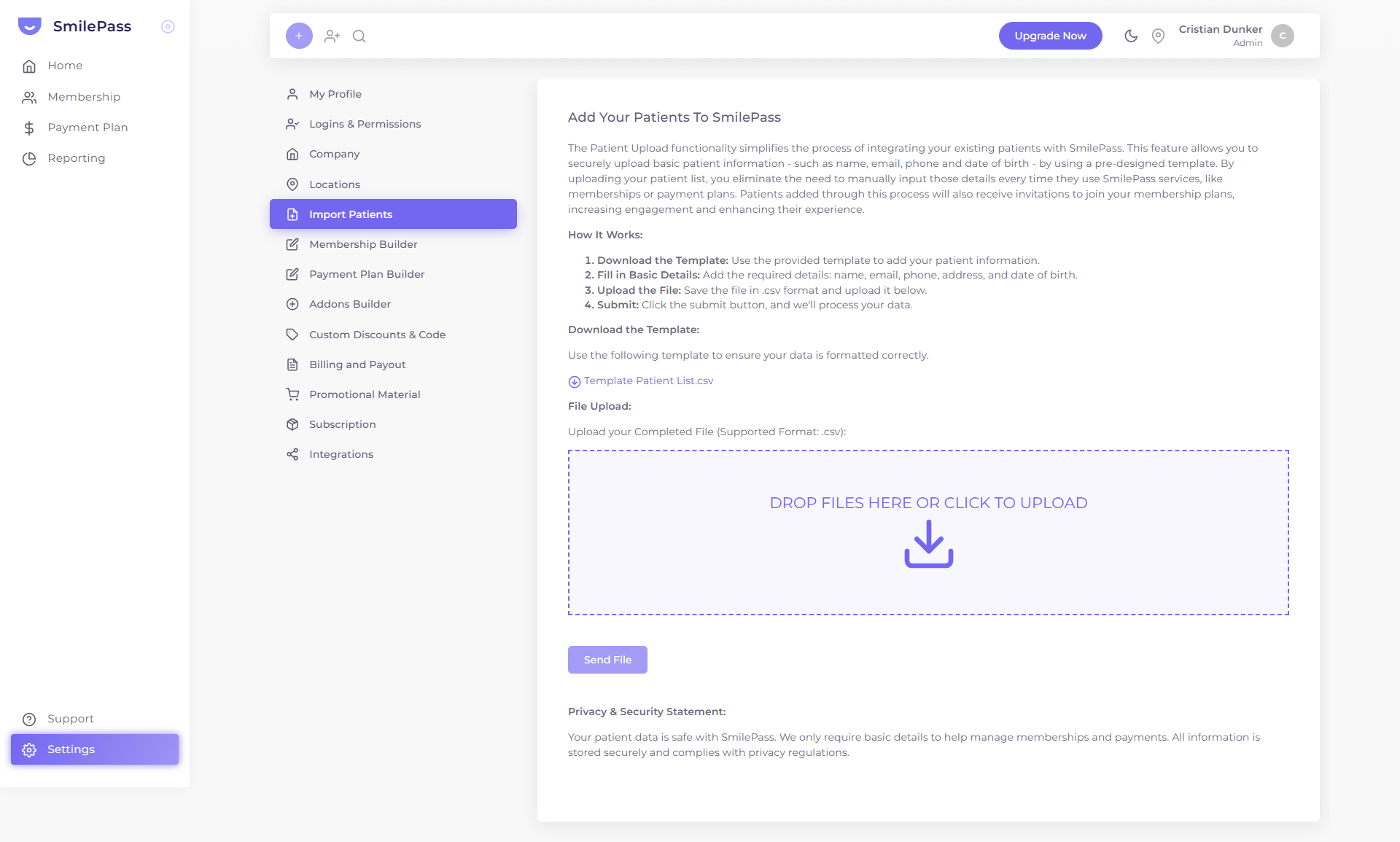 Settings → Import Patients. Download the template, fill it, drop it back in.
If you're migrating from another system or starting fresh with a list of existing patients, Settings → Import Patients lets you bring them in via a CSV upload — no manual data entry.
Step 1 — Download the template
On the Import Patients page, click Template Patient List.csv to download the file SmilePass expects.
Don't change the column order or rename the headers. The import maps columns by name, so editing them will silently fail or import into the wrong fields.
Step 2 — Fill in the basic details
Open the file in your spreadsheet program. Per row, fill in:
- name — full name
- email — must be a valid address (patients receive invitations here)
- phone — Australian mobile, digits only
- address — full street address
- date of birth — format as the template specifies (typically YYYY-MM-DD or DD/MM/YYYY)
Leave optional cells blank rather than typing placeholders like "N/A" — the import treats empty as missing, but text as data.
Step 3 — Upload the file
Back in SmilePass:
- Save the spreadsheet as .csv (not .xlsx — Excel format won't work)
- Drag the file onto the dashed upload zone, or click DROP FILES HERE OR CLICK TO UPLOAD to pick it
Step 4 — Submit
Press the submit button. SmilePass processes the file in the background and adds each row as a patient record.
Heads-up — auto-invitations
Patients imported this way are automatically sent invitations to join your membership plans. Reach out to current patients, offering them the benefits of joining your membership program to enhance their care experience.
If you only want to load records without contacting them yet, hold off on importing until you've decided which plans to expose. Or do a small test batch first (5–10 patients you've already told to expect an email).
Common problems
- "My headers got changed by Excel" — Excel sometimes auto-formats column headers. Open the CSV in a plain text editor to verify before uploading
- Date formats mismatched — stick to exactly what the template's example row shows
- Duplicate emails — the import deduplicates by email. The newest import wins
Next step
Adding a new member (the membership wizard) →
The five-step flow that signs a patient up to a membership plan.