
Track 4 · Daily operations
Tracking results — KPIs, reports and reconciliation
Dashboard KPIs, referral tracking, and per-list status columns.
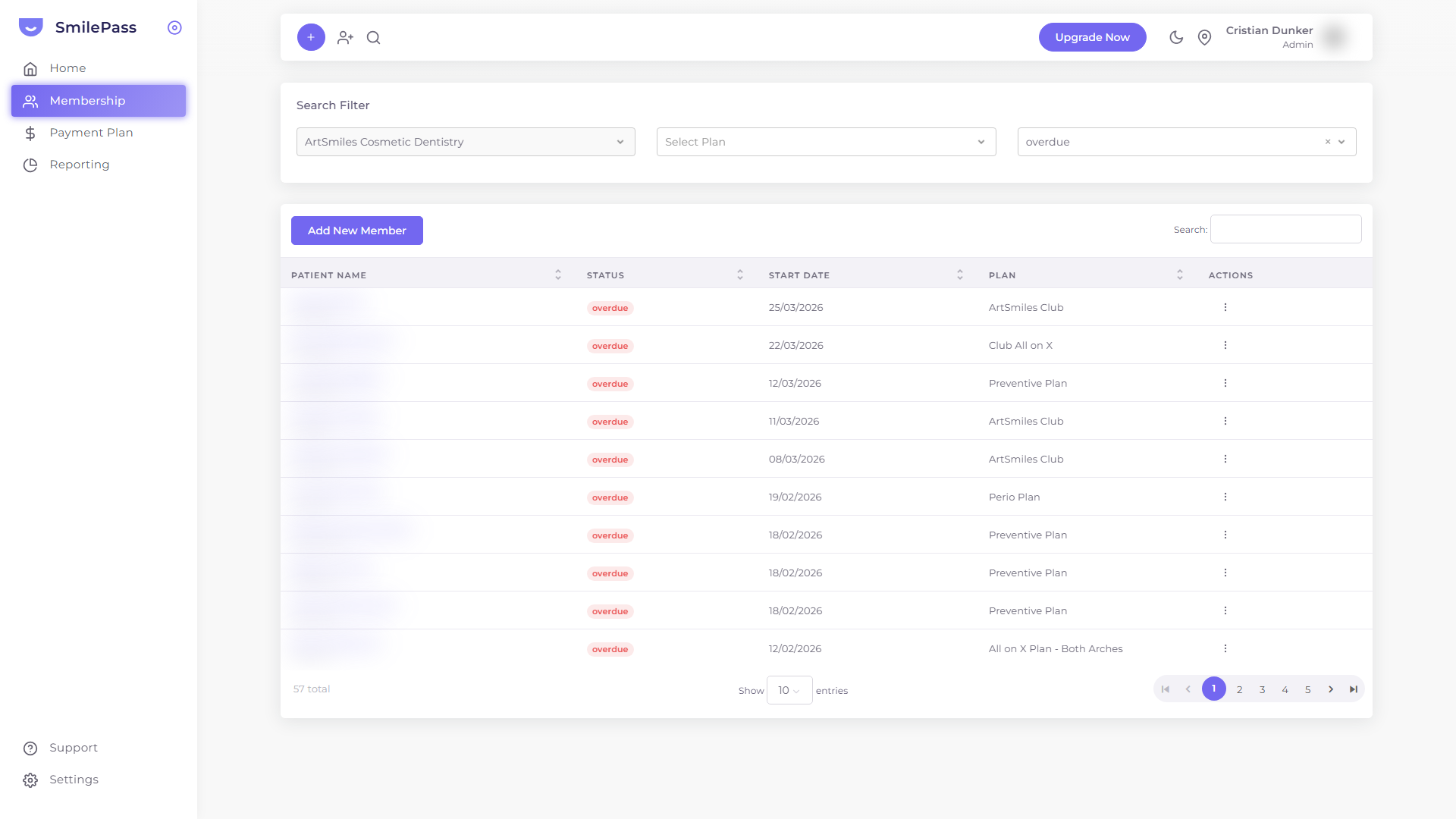 The Membership list filtered to Overdue — how you see at a glance who's behind on payments.
"Reports" in SmilePass lives in three places, each tuned to a different question. You'll likely flip between them every week.
1. The dashboard — at-a-glance KPIs
Home in the sidebar. Three headline metrics:
- Members — count of active members, with this-month delta and goal target (default 25)
- Retention % — percentage of members still active, with goal target (default 95%)
- Total Revenue — collected this period, with this-month delta and goal ($2,000 default)
Below: two line charts — New Members and Committed Payments. Plus the Latest New Members feed.
The date-range dropdown (Last 7 days by default) filters the right-side widgets. Use it to compare this week to last, this month to last, etc.
2. Reporting — referral tracking
Reporting in the sidebar opens /apps/member/member-referral. Despite the name, this is specifically a referral tracking dashboard, not a general financial reports area.
Columns: Account Holder · Dependents · Start Date · Campaign · User · Status.
Filters at top: by Campaign, by User (which staff member is associated), by Status.
Use this to monitor:
- Who's bringing in new patients via your referral program
- How each referral converts
- Which campaigns (promo codes, marketing pushes) are pulling weight
3. Per-list status columns — patient-level reconciliation
Both the Membership and Payment Plan lists carry their own status columns. This is where your per-patient reconciliation lives.
Membership list
- Status — Active / Pending / Cancelled / Failed
- Plan — which plan they're on
- Start Date
Filter by Practice, Plan or Status at the top.
Payment Plan list
- Progression — e.g. 4/12 (paid 4 of 12 instalments)
- Balance — outstanding dollars
- Status — Active / Completed / Failed / Pending
- Payment Type — Instant / Plan / Hold
Filter by Practice, Status or Payment Type.
When a plan goes Failed, follow up with the patient via the Actions menu (resend link, contact patient, etc.). When Completed, you can archive or leave for records.
What's not here
There is no separate "Profit & Loss" or "Aged Receivables" view inside SmilePass. For accounting-grade reports, export your payout statements from Billing & payouts into your own accounting software and build those reports there.
For deeper reporting (cohort analysis, per-staff attribution), the Pro tier unlocks "Advanced reports" — see pricing.
Weekly rhythm
A useful 5-minute weekly check:
- Open the dashboard. Compare this week's KPIs to last week's via the date-range dropdown
- Open the Payment Plan list. Sort by Status, action any Failed payments
- Open Reporting. See which referrals just converted, thank the referring members personally if possible
Next step
The member detail view →
Everything you can see and do on a single member's record.