
Track 4 · Daily operations
The member detail view
Everything you can see and do on a single member's record.
Step 1 of 9
The profile card
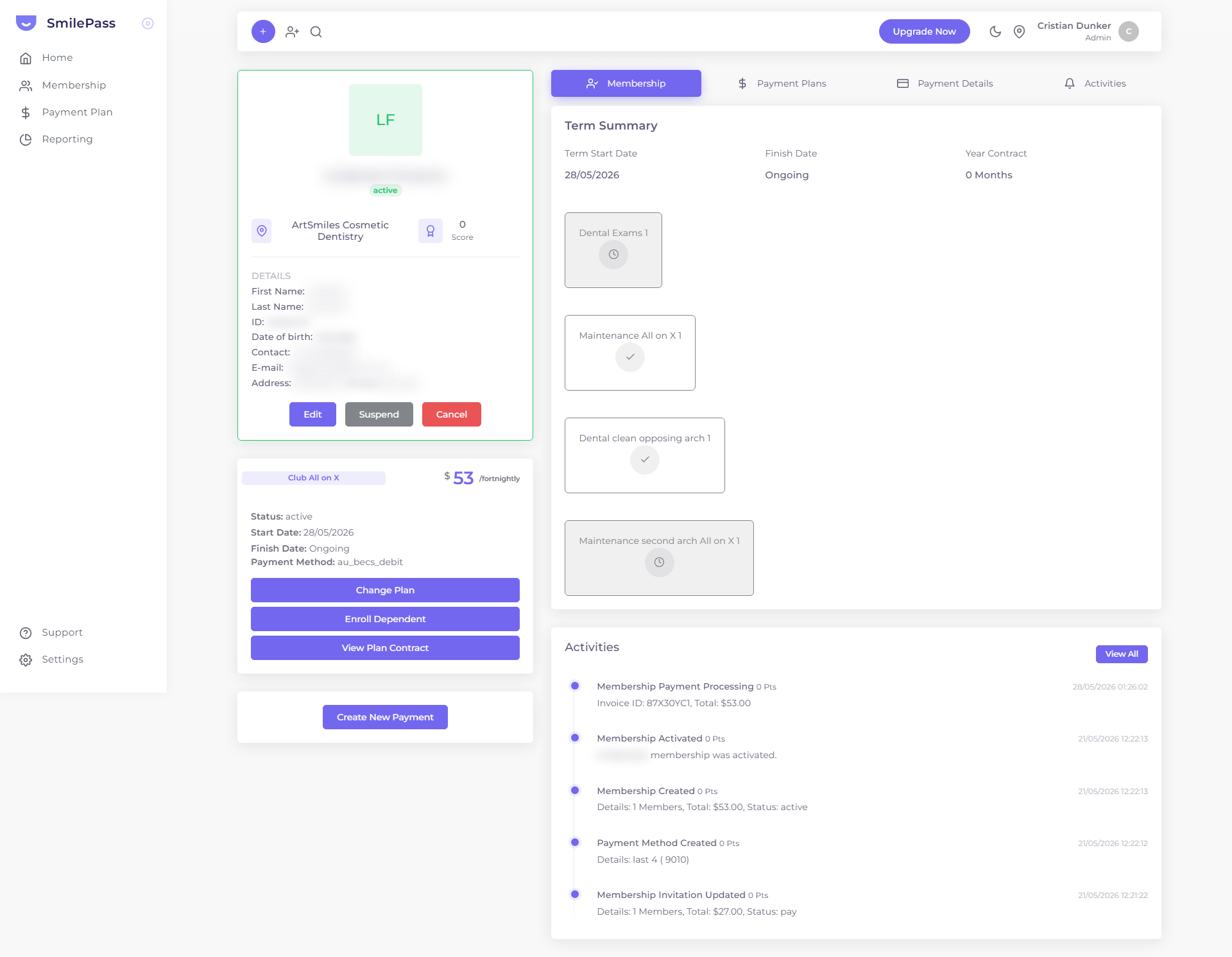
Open any member (click their name, or Actions ⋮ → Details on the Membership list). The card up top shows their photo/initials, name, a status pill (active / overdue / suspended), their location and a Score.
Click the highlighted area or Next to continue · use ← → keys
Click a member's name (or Actions ⋮ → Details) in the Membership list to open their detail view. It's the hub for everything about one member.
The left column — who they are
- Profile card — photo/initials, name, status pill (active / overdue / suspended), location, and a Score.
- DETAILS — First/Last name, ID, Date of birth, Contact, Email, Address.
- Buttons — Edit · Suspend · Cancel (see suspending & cancelling).
- Plan card below — the plan name, price/frequency, Status, Start/Finish dates and Payment Method (e.g. a BECS direct debit). Its action buttons:
- Change Plan — move the member to a different membership plan.
- Enroll Dependent — add a family member after signup.
- View Plan Contract — open the Contract Viewer.
- Create New Payment — raise an instant payment or plan for this member.
The right column — four tabs
- Membership — the Term Summary (Term Start Date, Finish Date, Year Contract) plus the included-benefit cards, each showing a tick (active) or a clock (still inside its waiting period).
- Payment Plans — any instalment payment plans this member is on.
- Payment Details — Next Payment (amount + date), Frequency, Finish Date, the holder/dependent rows, and a Transactions list with running Paid / Overdue totals and each invoice's status.
- Activities — a full audit timeline (Date · Action · Description): Membership Created → Membership Activated → Payment Method Created → Membership Payment Processing, and so on. This is the first place to look when you need to know what happened, and when.
When to use it
Reach for the detail view whenever you need to answer a specific member's question — what they pay, when the next charge is, what's included, why a benefit isn't available yet, or what's happened on their account. The list view tells you who; the detail view tells you everything else.
Next step
The recurring billing cycle →
How automatic charges, cycles and renewals work.