
Track 7 · Troubleshooting & FAQ
Suspending & cancelling a member
The member lifecycle actions — what Suspend and Cancel do, and when to use each.
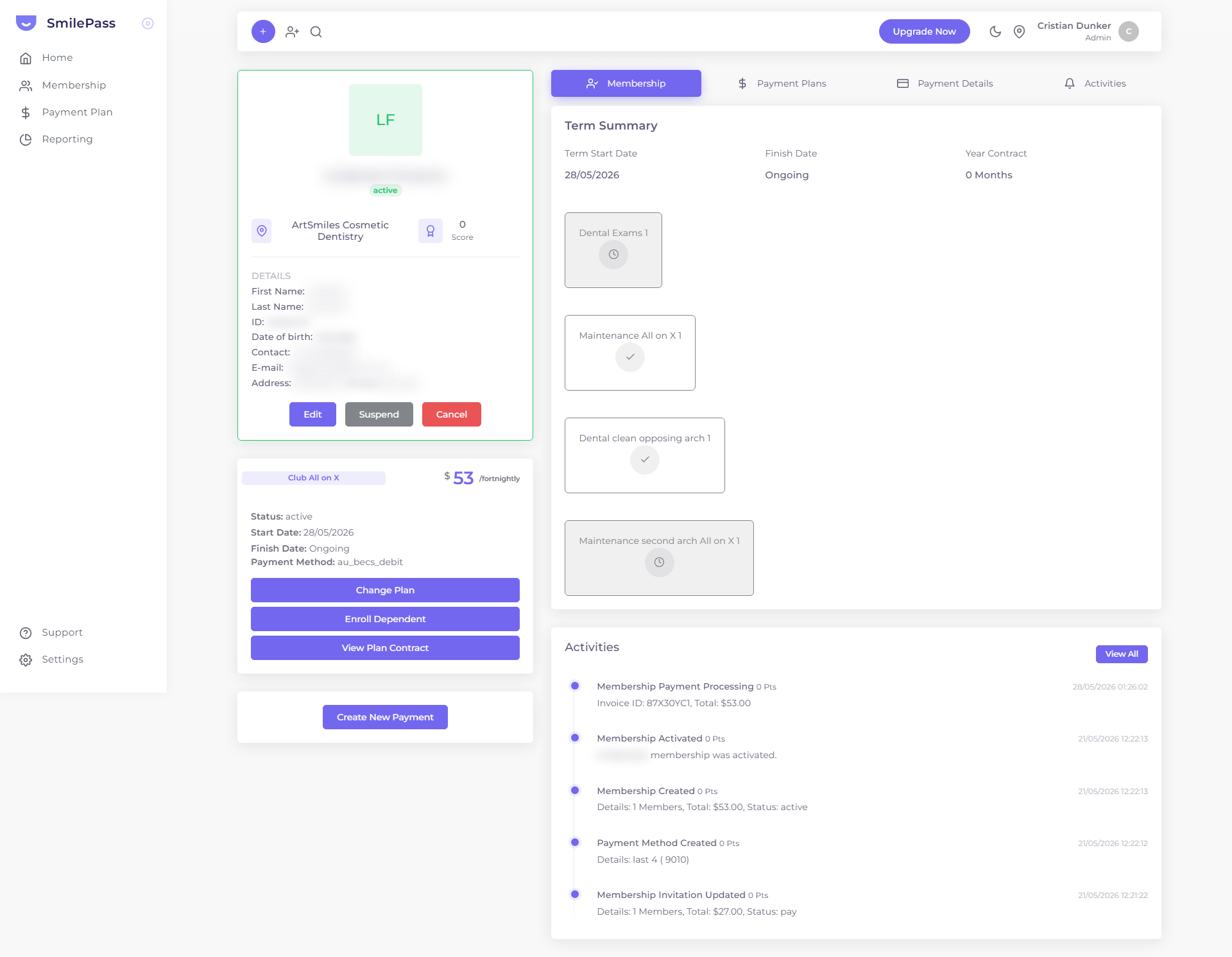
Step 1 of 5
Where the actions live
Two actions control a member's lifecycle: Suspend and Cancel. You'll find them as buttons at the bottom of the member's profile card — and on the membership list via the row's Actions (⋮) menu.
Click the highlighted area or Next to continue · use ← → keys
Two actions control a member's lifecycle: Suspend and Cancel. Both are on the member list row Actions (⋮) menu and as buttons on the member detail view.
Suspend
Stops the member being active without permanently ending their record. Use it when you want to pause billing — for example a member who's asked to hold their plan, or while you sort out a payment issue. The member moves to a suspended status and shows in the dashboard's Activity Report.
To confirm: whether billing fully stops while suspended, and the exact step to reactivate a suspended member.
Cancel
Ends the membership. Use it when the member is leaving for good. No further charges are raised once cancelled, and the member shows as cancelled.
To confirm: how any lock-in period (set on the plan's Terms tab) interacts with an early cancellation, and whether a final or partial charge applies.
Change Plan instead?
If the member isn't leaving but wants something different, use Change Plan on their detail view rather than cancelling — it keeps their history and relationship intact.
Refunds are separate
Suspending or cancelling stops future charges. It does not refund past payments. If money needs to go back, you refund the patient from your own bank — SmilePass doesn't do refunds (see refunds & disputes).
Next step
Getting help →
How to open a support ticket and what happens after you do.