
Track 4 · Daily operations
Taking an instant payment
Charge a one-off cost and send a pay-by-link in seconds.
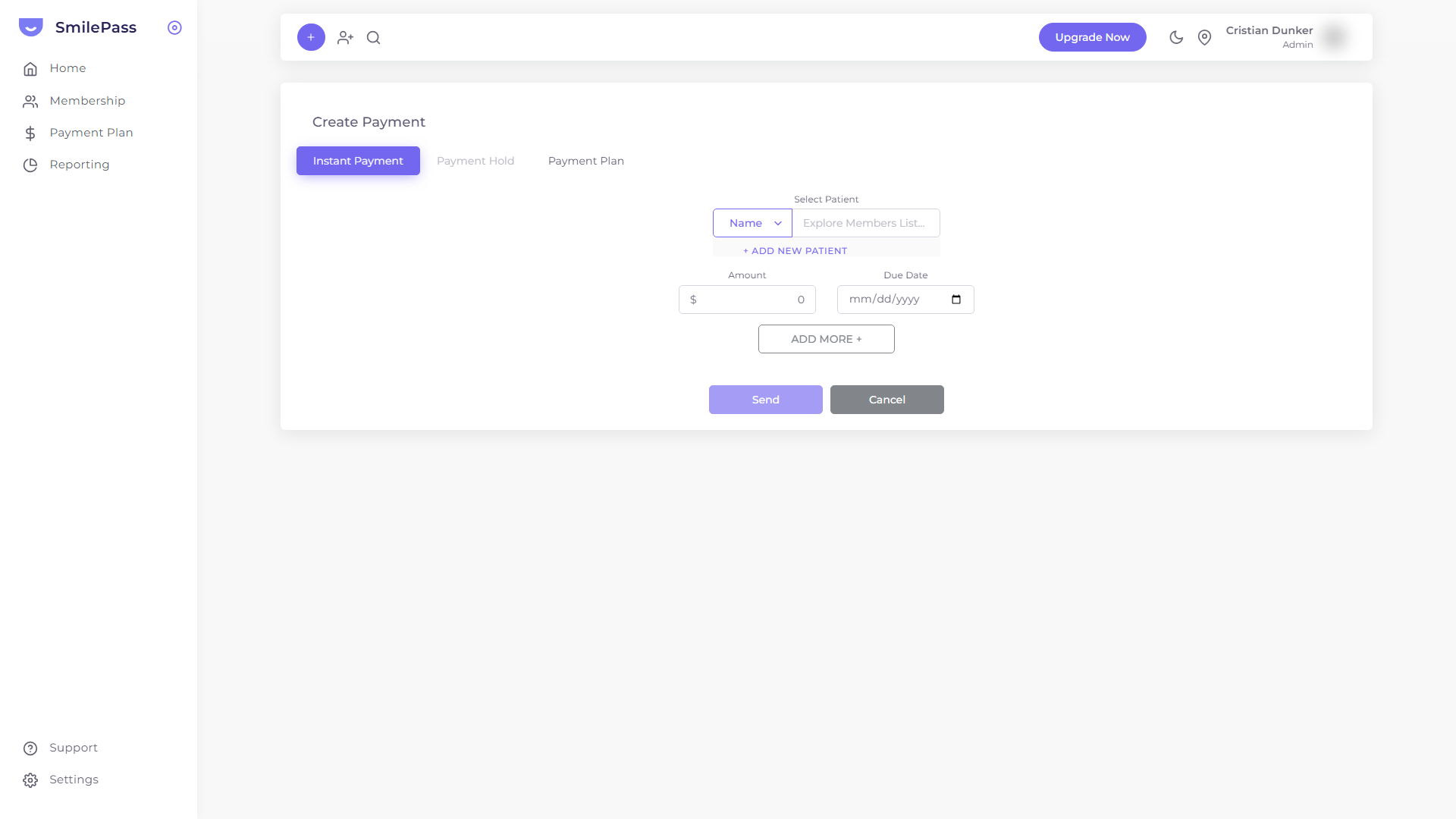 The Create Payment screen. Instant Payment is the most-used flow; for instalments see taking a payment plan.
Click Payment Plan in the left sidebar to reach the payments list. It shows every payment in flight with columns Member · Start Date · Payment Type · Total Amount · Progression · Balance · Status · Actions.
To create a new payment, press Create Payment, then stay on the Instant Payment tab.
Instant Payment — single charge, single link
The simplest path. Use it for single-visit costs, deposits, one-off invoices — anything that doesn't need an instalment plan.
- Select Patient — search the members list or use + ADD NEW PATIENT to create one on the fly
- Amount in dollars
- Due Date — when payment is due
- ADD MORE + — if you need to bill for multiple items at once, add more amount/due-date pairs to the same link
- Send — patient receives the link by SMS or email immediately
They pay from their phone, no terminal required.
What happens after Send
Sent payments appear in the Payment Plan list. The Payment Type column reads instant, and the Status column tells you where each one is up to:
- processing — charge in progress
- completed — fully paid
- cancelled — voided, won't be charged further
- expired — the payment window lapsed without completion
Filter the list by Practice, Status or Payment Type at the top to find what you need.
Instant or plan?
If you're not sure which to use, default to an instant payment — it's quicker and needs no setup. Reach for a payment plan when the bill is larger and the patient wants to spread it over time. You can always start with an instant charge and put the patient on a plan later.
Next step
Taking a payment plan →
Put a patient on instalments for treatment they'll pay off over time.