
Track 5 · Payments & billing
Billing & payouts
Your billing card on file, and the payouts SmilePass settles to your bank.
Step 1 of 6
Payment Details — your card
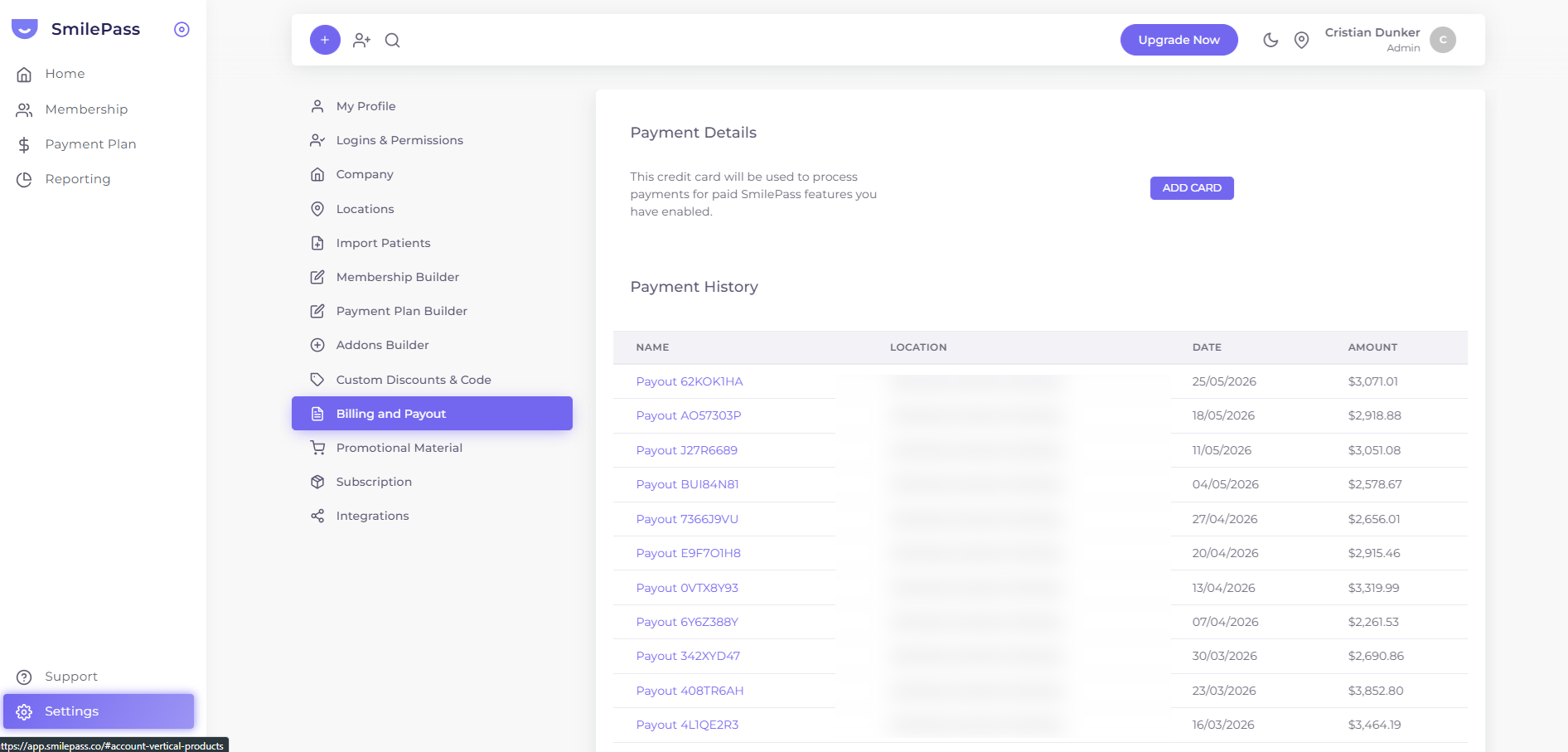
Settings → Billing and Payout. Press ADD CARD to attach the card SmilePass uses to bill you for paid features (your subscription tier and any upgrades). You can keep more than one, with one set as primary.
Click the highlighted area or Next to continue · use ← → keys
Settings → Billing and Payout has two sides: the card SmilePass uses to bill your practice for paid features, and the payouts SmilePass settles to your bank account.
Payment Details — your card on file
Press ADD CARD to attach a credit card to your account. SmilePass uses this card to bill:
- Your subscription tier (Growth / Pro / Enterprise — Free has no charges here)
- Any add-on or upgrade charges you've opted into
You can add multiple cards if you want a backup; one is marked as the primary.
Payment History — your payouts
This table lists every payout SmilePass has settled to your bank account:
| Column | Used for |
|---|---|
| Name | The payout reference (e.g. Payout 62KOK1HA) |
| Location | Which clinic the payout belongs to (for multi-clinic accounts) |
| Date | When the payout was made |
| Amount | The net amount paid into your bank |
Click a payout to open its Payout Statement — a PDF-ready breakdown showing Gross Payments Collected over the period, minus the SmilePass Services Fees (including GST), giving the net Payout paid into your bank. Scroll down for the Payout Transactions History: a line-by-line list with a running balance. Export these monthly for your bookkeeper or your accounting software.
What this page is NOT
Important distinction: this page shows your payouts at a settlement level — it is not where you reconcile individual patient payments.
- Settlement view — Billing and Payout (this page): each payout is the period's patient money collected, minus the SmilePass fee, paid into your bank.
- Per-patient view — tracked in the Membership list and Payment Plan list via the Status, Progression and Balance columns. See Tracking results.
Use the payout statements to reconcile against your bank deposits, and the member lists to chase a specific patient.
Common questions
- What if my billing card gets declined? SmilePass retries automatically a couple of times, then emails the Contact Person on your Company record. Add a card via this page to clear the issue.
- Why doesn't a payout match exactly one patient's payment? Each payout batches all the patient payments collected over the period, then subtracts the SmilePass fee — open the Payout Statement to see the line-by-line breakdown.
- Statements? Click any payout to open and Download its statement for accounting.
Next step
Account & team →
My Profile, Logins & Permissions, and the top-level Company record.